
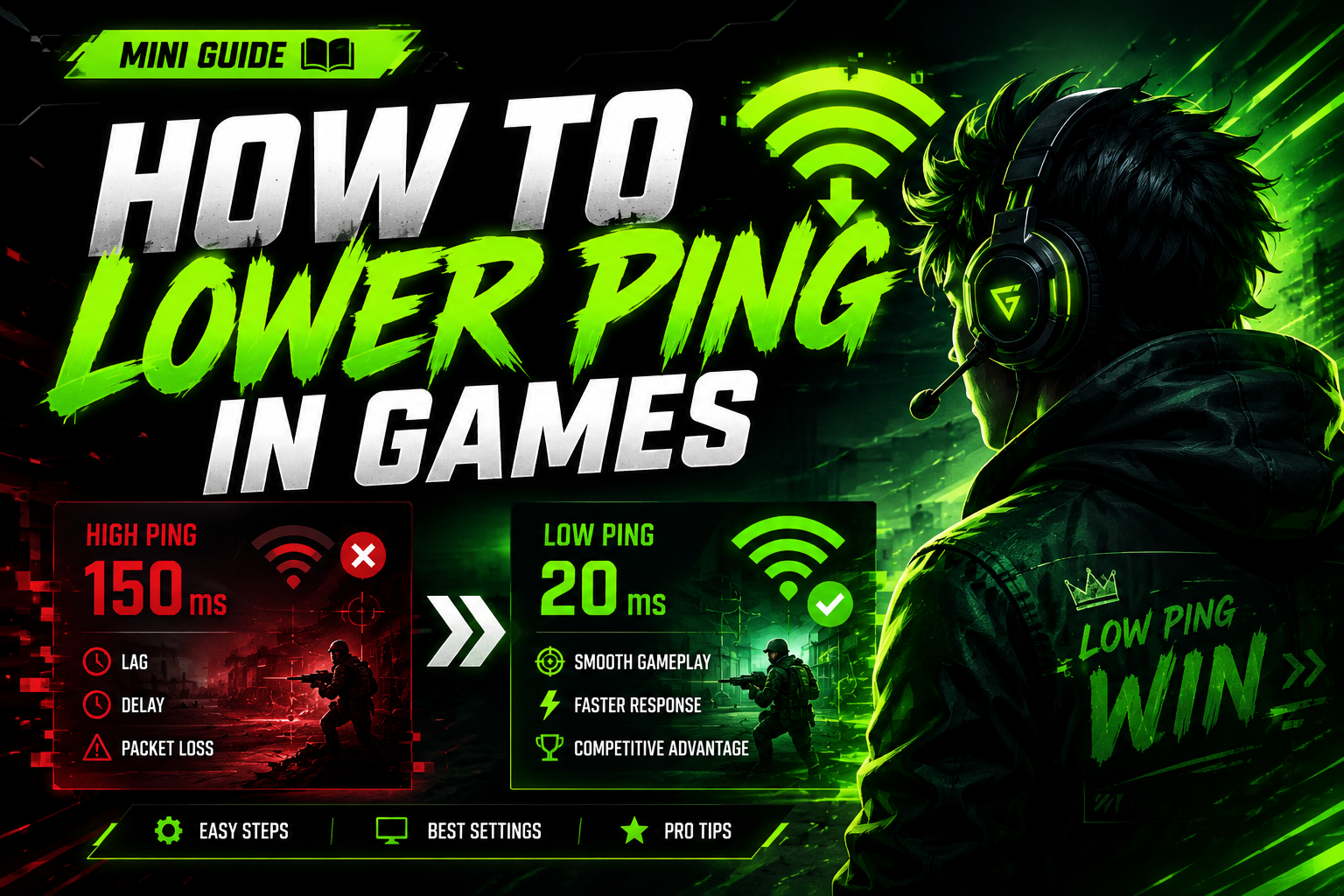
When I talk about ping, I am referring to the amount of time it takes for a data packet to travel from my device to the game server and back. This time is measured in milliseconds, usually shown as “ms.”
In competitive games such as Valorant, Counter-Strike 2, Call of Duty, Fortnite, Apex Legends, League of Legends, and Rocket League, a few milliseconds can affect how quickly an action is registered. If my ping becomes too high, I may notice that shots register late, characters teleport, or abilities activate with a delay.
As a practical reference, I usually interpret ping values as follows:
| Approximate ping | Typical experience |
|---|---|
| 1–30 ms | Excellent for online gaming |
| 31–60 ms | Very good and stable |
| 61–100 ms | Acceptable for most games |
| 101–150 ms | Delay may become noticeable |
| Over 150 ms | Visible lag is likely |
| Over 250 ms | Gaming experience may be very poor |
These values are only general guidelines. In my experience, a stable 80 ms connection can feel better than a connection that constantly fluctuates between 30 and 150 ms. That is why I do not look only at the average ping. I also check jitter, packet loss, and latency under load. Internet quality can be evaluated using metrics such as latency, packet loss, download speed, upload speed, loaded latency, and jitter.
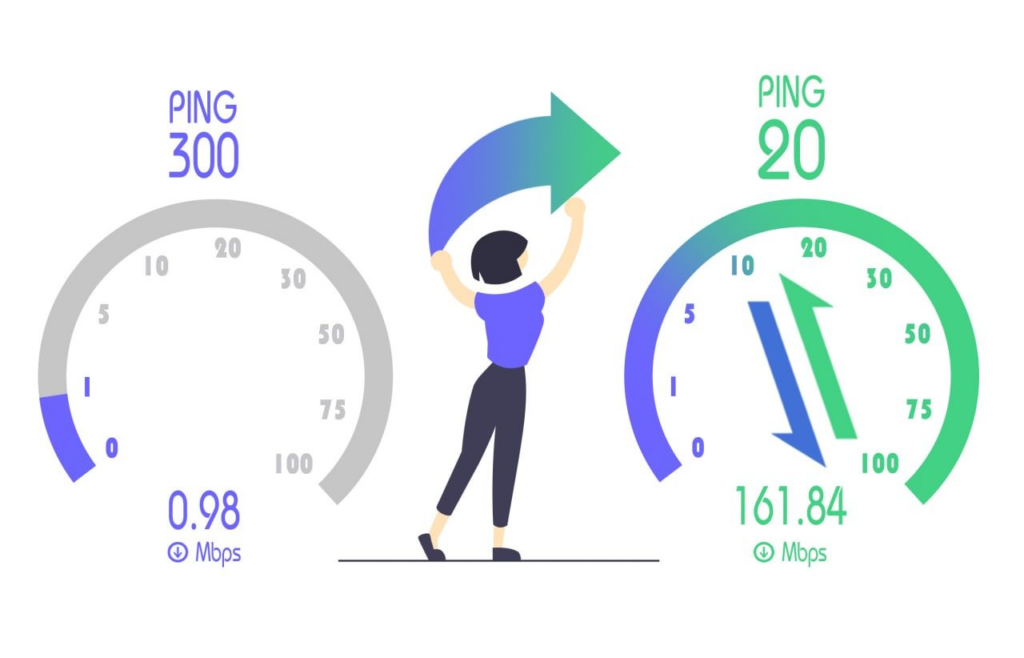
Ping, Lag, FPS, and Input Lag
Before changing my router settings or buying a program that claims to “optimize” my connection, I try to identify the exact problem.
- Ping: Measures the response time between my device and the server.
- Latency: Refers to the overall delay in a communication or action.
- Lag: Describes the visible effect of network delay, such as freezing, skipping, or delayed actions.
- Jitter: Represents changes in ping over time.
- Packet loss: Happens when some data packets fail to reach their destination.
- Low FPS: Occurs when my PC or console cannot render enough frames per second.
- Input lag: Refers to the delay between pressing a button or moving the mouse and seeing the action on screen.
If I have 200 FPS but 150 ms of ping, I will still experience connection-related problems. If I have 25 ms of ping but the game runs at 20 FPS, the problem is probably graphics performance rather than my Internet connection.
I Use an Ethernet Cable
The first step I take to lower ping in games is connecting my PC or console directly to the router with an Ethernet cable.
Wi-Fi can work very well, but it is more vulnerable to interference, obstacles, distance, congestion, and other connected devices. A wired connection usually provides greater stability and can help reduce jitter spikes and packet loss. I also make sure that the cables are properly connected and not damaged.
Which Ethernet Cable Do I Need?
For Gaming, I do not necessarily need the most expensive cable on the market. In most homes, a properly installed Cat 5e or Cat 6 cable is enough for a 1 Gb/s connection.
I make sure that:
- The cable is not bent or damaged.
- The RJ45 connectors fit securely.
- The router and gaming device have compatible ports.
- I avoid unnecessary cable extensions.
- I do not use low-quality adapters that may cause interruptions.
If I cannot run a cable across the room, I may consider a powerline adapter, a wired access point, or a properly installed Ethernet connection. However, before buying additional equipment, I always test my current connection to confirm that Wi-Fi is actually the problem.
I Optimize Wi-Fi When Ethernet Is Not Available
When I have no choice but to play over Wi-Fi, I first improve the physical setup before changing complicated settings.
I Position the Router Correctly
I avoid hiding the router inside a cabinet, placing it on the floor, or surrounding it with metal objects. I position it in an area that is:
- Centrally located in the home.
- Elevated and unobstructed.
- Away from microwaves, cordless phones, and other sources of interference.
- As close as possible to my PC, console, or television.
- Free from thick walls directly blocking the signal.
When I am close to the router, I usually test the 5 GHz band first because it often provides higher speeds and less congestion than 2.4 GHz. The 2.4 GHz band can be more useful when I am far away or separated by several walls, but it is often more crowded.
I Change the Wireless Channel
If I live in an apartment building with many nearby Wi-Fi networks, I use a network analyzer to check which channels are congested. I then enter the router’s configuration panel and choose a less crowded channel.
This may not reduce ping dramatically, but it can improve signal stability and reduce interruptions during matches.
I Avoid Cheap Wi-Fi Repeaters
A poorly positioned Wi-Fi repeater can increase latency because it receives and retransmits data. If I need to extend coverage, I prefer a good-quality mesh system, a wired access point, or a properly configured powerline adapter.
I Close Background Downloads and Applications
Many times, my ping increases because another program is using the connection. Before starting a game, I close or pause:
- Downloads from Steam, Epic Games, Battle.net, and Xbox App.
- OneDrive, Google Drive, Dropbox, and other synchronization services.
- Torrents and download managers.
- Netflix, YouTube, or Twitch streams.
- Windows updates.
- Cloud backups.
- Video calls and live streams.
- Console or game updates.
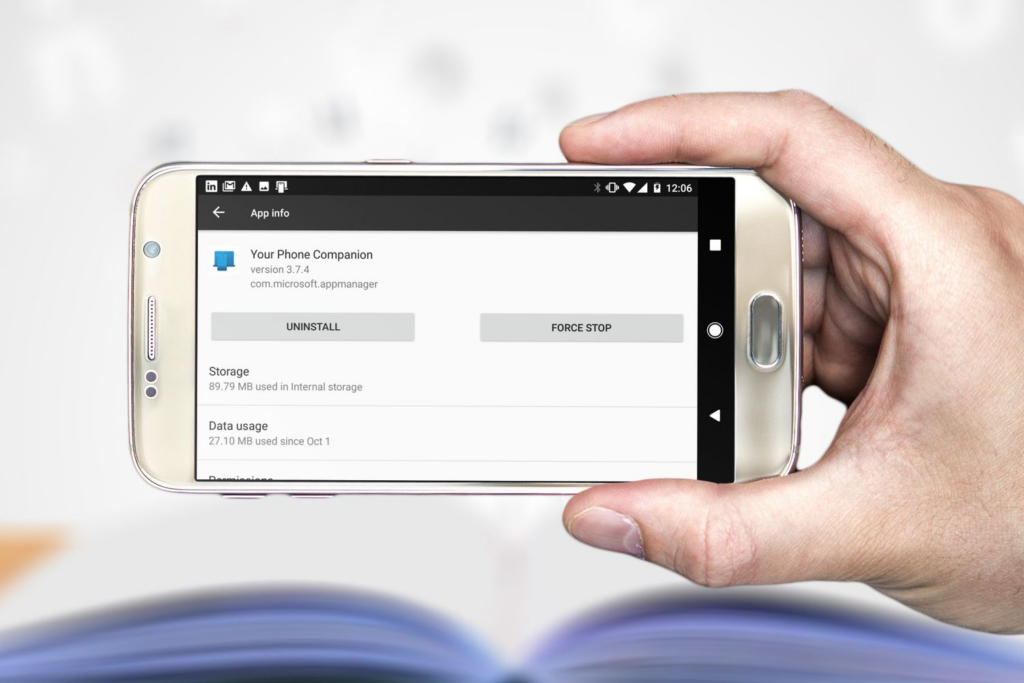
On Windows, I also check which applications are using my network through Task Manager. In the Processes tab, I can sort applications by network usage and identify programs that are downloading or uploading data without my noticing.
This is especially important if my connection has limited upload bandwidth. A video call, Twitch stream, or large cloud backup can saturate the upload channel and significantly increase latency.
I Check the Devices Connected to My Network
My gaming PC is not the only device that can cause high ping. Other devices in my home can also consume bandwidth and create network congestion.
Before playing, I check whether someone is:
- Downloading games or movies.
- Streaming 4K video.
- Participating in video calls.
- Uploading large files.
- Using connected security cameras.
- Running cloud backups.
- Downloading updates on another console.
I do not necessarily have to disconnect every device. In many cases, the most effective solution is to control traffic through the router using quality of service, bandwidth limits, parental controls, or device prioritization.
I enable quality of service to Prioritize Gaming.
Quality of service, or quality of service, allows me to prioritize specific devices or types of traffic. If my router supports this feature, I can prioritize my gaming PC, PlayStation, Xbox, or Nintendo Switch.
The exact location varies depending on the router brand, but I generally follow these steps:
- I access the router’s control panel through a browser.
- I look for “quality of service,” “Quality of Service,” “traffic prioritization,” or “Gaming” settings.
- I select the device I use for Gaming.
- I assign it a high priority.
- I save the changes and restart the router if necessary.
- I compare my ping before and after enabling the setting.
Some modern routers include specific features designed to control latency under network load. This type of configuration may be more useful than simply paying for much higher download speeds, especially when the real problem is congestion inside my home network.
I do not assign the highest priority to every device because that would eliminate the purpose of quality of service. I also write down the original configuration before changing advanced settings so I can restore it if necessary.
I Choose the Closest Game Server
The physical distance between my location and the game server has a major effect on ping. For that reason, I choose the closest available region in the game’s settings.
For example, if I am located in Argentina, I usually test South American or Brazilian servers when the game offers them. The best option is not always the region selected automatically, so I compare the available regions manually and choose the one with the lowest and most stable ping.
A nearby server does not guarantee a good connection if it is overloaded or if my Internet provider uses a poor route. That is why I also pay attention to:
- Average ping.
- Ping variation.
- Packet loss.
- Number of players.
- Server status.
- Time of day.
Choosing nearby servers and avoiding periods of network congestion are common recommendations for reducing ping and lag in online games.
I Restart the Router and Update Its Firmware
When my ping suddenly becomes worse, I restart the router properly:
- I turn off the router.
- I unplug it for approximately one minute.
- I plug it back in.
- I wait for the connection lights to stabilize.
- I test my connection again.
This procedure does not magically increase my contracted Internet speed, but it can solve temporary errors, frozen processes, or short-term connectivity problems.
I also periodically access the administration panel to check whether a firmware update is available. Firmware updates can fix bugs, improve security, and solve stability issues. Keeping the router firmware and operating system up to date is a common recommendation for improving overall network performance.
I Check My Real Internet Performance
The speed advertised in my Internet plan does not always match the performance my gaming device receives. For that reason, I perform several tests at different times:
- When nobody else is using the network.
- While another person is streaming content.
- During peak hours.
- Over Wi-Fi.
- Through an Ethernet cable.
I do not look only at download speed. I also examine:
- Idle latency.
- Loaded latency.
- Upload speed.
- Packet loss.
- Jitter.
- Differences between test servers.
A fast connection can still have high ping if the server is far away, the route is congested, or packets are being lost. Likewise, a slower connection may be perfectly adequate for Gaming if it maintains stable latency.
I Check for Packet Loss
Packet loss is one of the most frustrating problems in onlinGamingng. It can cause enemies to appear suddenly, make my character move backward, or trigger disconnection messages.
On Windows, I can run a basic test through Command Prompt:
bashping 1.1.1.1 -n 30
I can also test a domain name:
bashping google.com -n 30
If I see messages such as “Request timed out” or consistent packet loss, I check the following:
- Ethernet cable.
- Router.
- Network adapter.
- Wi-Fi signal.
- Internet service provider.
- Game server status.
To analyze the route in greater detail, I can use the tracert command:
bashtracert google.com
This command shows the different network hops between my device and the destination. If the problem appears at the first hop, it is probably related to my local network. If it appears further along the route, it may be caused by my ISP or an external server.
I Reset the Network in Windows
If my connection behaves strangely, I can try several Windows commands from an administrator Command Prompt:
bashnetsh winsock reset
netsh int ip reset
ipconfig /release
ipconfig /renew
ipconfig /flushdns
After running them, I restart the computer and test the game again. Microsoft recommends these types of commands to reset network components, renew the IP address, and clear the DNS resolver cache.
I do not run random commands found in videos or forums without understanding what they do. I also avoid modifying the Windows Registry, disabling network protocols, or changing advanced TCP settings unless I have a clear way to restore the original configuration.
I Change DNS Servers, but I Do Not Expect Miracles
Changing DNS servers can improve how quickly domain names are resolved, but it does not necessarily reduce in-game ping.
DNS is mainly used when my device needs to translate a domain name into an IP address. Once I am connected to the game server, ping depends much more on the network route, distance, congestion, and the infrastructure of the Internet provider.
I can test public DNS services such as:
- Cloudflare:
1.1.1.1and1.0.0.1. - Google:
8.8.8.8and8.8.4.4.
After changing the DNS settings, I clear the DNS cache:
bashipconfig /flushdns
I always compare the results before and after making the change. If I do not notice an improvement, I return to automatic DNS settings. I do not change DNS simply because someone promises “zero ping.”
I Test a Gaming VPN Carefully
A traditional VPN usually adds an extra step to the connection and may increase ping. However, in certain situations, a gaming-focused VPN can provide a more efficient route if my Internet provider is using a congested path.
I only test one when:
- My ping is high only in certain games.
- The route used by my ISP seems unstable.
- I experience packet loss on specific servers.
- The game does not allow me to change regions.
- I can compare the results through a free trial.
I never use a VPN assuming it will automatically reduce latency. If the server is extremely far away, no application can eliminate the effect of physical distance. I also review the service’s privacy policy, pricing, and impact on connection stability before subscribing.
I Check NAT Settings on Consoles
On PlayStation, Xbox, and Nintendo Switch, the NAT type can affect how easily I connect with other players and use certain multiplayer features.
If I have a strict NAT or problems finding matches, I check:
- UPnP settings on the router.
- Double NAT.
- A router connected behind another router.
- ISP configuration.
- Game server status.
- Official port requirements for the game.
I do not open random ports. Each game and platform can use different ports, so I always consult official documentation. On PlayStation, for example, a restrictive NAT type may limit certain online features.
If I enable UPnP, I use a strong router password and keep the firmware up to date. If the problem continues, I contact my ISP to determine whether my connection uses CG-NAT, since this configuration can complicate certain incoming connections.
I Avoid Playing During Congestion Periods
In some homes, neighborhoods, mobile networks, and Internet infrastructures, ping becomes worse at specific times of day. To check this, I run tests during:
- Morning.
- Afternoon.
- Evening.
- Weekends.
- My usual gaming hours.
If my ping consistently increases at night, there may be congestion within my home network or in my ISP’s infrastructure. In that situation, changing DNS usually will not be enough. I can contact my provider, request a technical inspection, or compare other ISPs available in my area.
I Update Network Drivers and Check My Adapter
On PC, I keep the following components updated:
- Network adapter drivers.
- Chipset drivers.
- Operating system.
- Router firmware.
- Wi-Fi card software.
- Game client and game files.
I also check whether my network adapter is entering power-saving mode. On some systems, temporarily turning off certain power-saving options can improve stability. However, I do not change numerous advanced properties at the same time because that makes it difficult to identify what actually helped.
If I play over Wi-Fi, a card compatible with Wi-Fi 5 or Wi-Fi 6 may perform better than an older adapter. Even so, signal quality, distance, interference, and router performance remain important factors.
I Do Not Confuse Ping with FPS
If the problem is not related to my connection, I optimize my system’s performance. To improve visual smoothness, I can:
- Lower shadow quality.
- Disable unnecessary effects.
- Cap FPS at a stable value.
- Enable compatible low-latency technologies.
- Close programs that consume CPU or RAM.
- Maintain suitable temperatures.
- Update graphics drivers.
- Use the game’s recommended display mode.
If my FPS drops at the same time as my ping rises, I may be dealing with two separate problems. In that case, I check whether my CPU, GPU, RAM, or storage drive is reaching 100% usage.
Mistakes I Avoid When Trying to Lower Ping
During my tests, I avoid the following solutions, which often create unrealistic expectations:
- Paying for more bandwidth without checking latency.
- Changing DNS and expecting an automatic 50 ms reduction.
- Buying an extremely expensive Ethernet cable.
- Installing several “gaming boosters” simultaneously.
- Using a VPN without comparing connection routes.
- Modifying the Windows Registry without a backup.
- Turning off the firewall without a specific reason.
- Opening random ports.
- Downloading optimization tools from unknown websites.
- Blaming my PC when the problem is actually the server.
- Blaming the game when every device on my network experiences packet loss.
The best strategy is to change one thing at a time, measure the result, and keep the adjustment only if it genuinely improves my connection.
My Low-Ping Gaming Checklist
Before starting a competitive match, I go through this quick checklist:
- I connect my PC or console through Ethernet.
- I close downloads, torrents, and cloud synchronization.
- I check that nobody else is saturating the network.
- I select the closest available game server.
- I restart the router if the connection behaves abnormally.
- I check ping, jitter, and packet loss.
- I enable quality of service if my router supports it.
- I make sure that no updates are running.
- I check the game’s server status.
- I avoid using a VPN if it increases latency.
Frequently Asked Questions About Ping in Games
What is a good ping for Gaming?
In my experience, anything below 60 ms provides a very good experience in most online games. Between 60 and 100 ms can still be acceptable, while ping above 100 or 150 ms becomes more noticeable, especially in competitive shooters.
Does an Ethernet cable really lower ping?
Yes, it can help reduce instability, interference, and latency spikes compared with a weak or congested Wi-Fi connection. However, it cannot eliminate the distance to the game server or fix a poor route used by the Internet provider.
Does faster Internet mean lower ping?
Not necessarily. A fast connection can still have high ping if the server is far away, the route is congested, or packets are being lost. For Gaming, connection stability can be just as important as the advertised download speed.
Does changing DNS reduce ping?
In some cases, it can improve the initial domain-resolution process, but it usually does not significantly change in-game ping. That is why I always measure my connection before and after changing DNS servers.
Can a VPN lower ping?
It can in specific situations if it provides a more efficient route than my ISP, but it can also increase latency. I treat a VPN as a testing option rather than a guaranteed solution.
Why do I have good ping but still experience lag?
The cause may be low FPS, input lag, jitter, packet loss, network congestion, server problems, or poor system performance. To identify the cause, I check all of these factors rather than looking only at the ping number.


Deja una respuesta